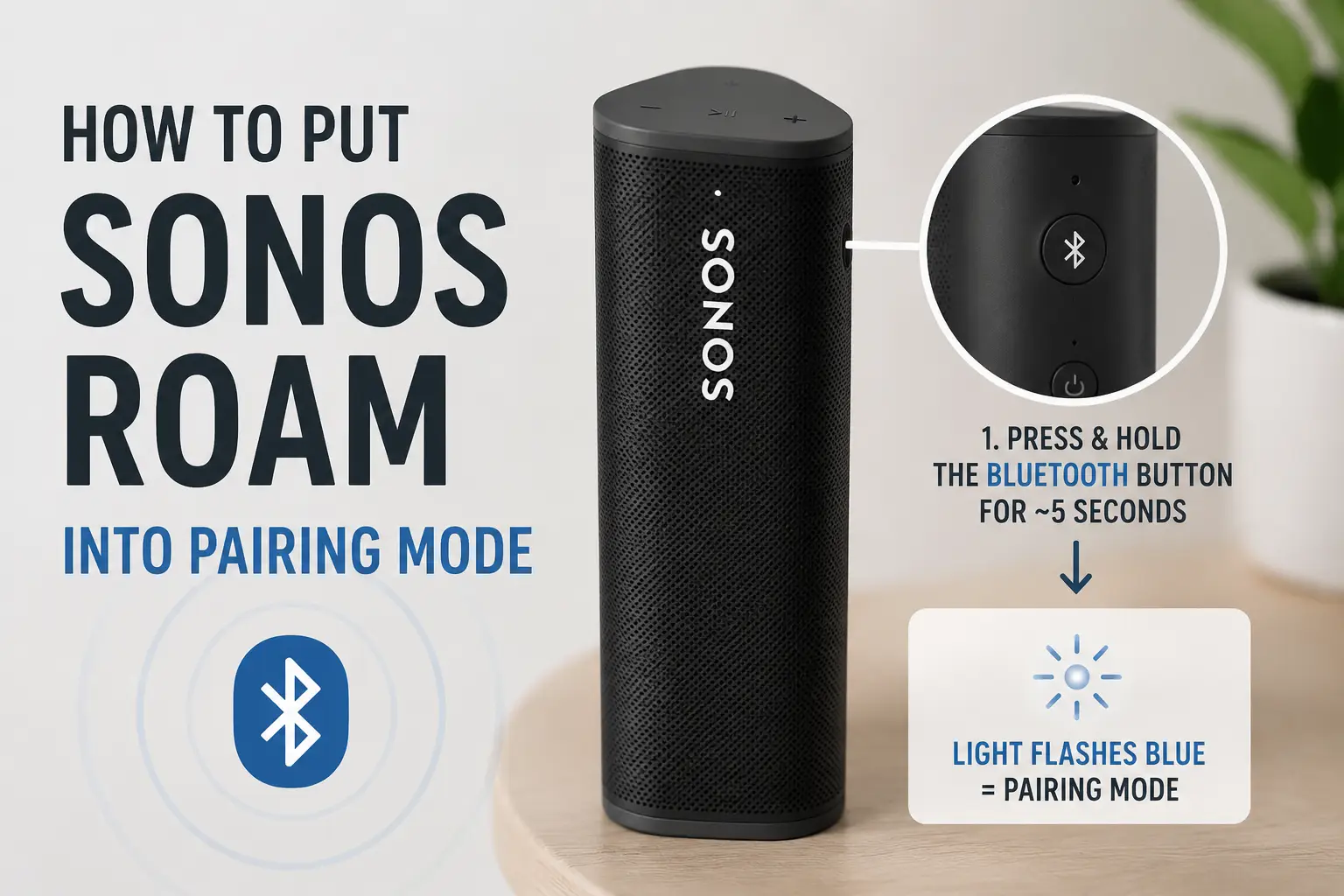
Whether you just bought a Sonos Roam or want to connect it to a new device, getting it into pairing mode is the first step. Pairing mode lets your speaker communicate with your phone, tablet, or computer so you can start streaming music, podcasts, or any audio content quickly. For most users, the process is straightforward, but there are a few details worth knowing to avoid frustration.
Understanding the Sonos Roam
Before diving into pairing, it helps to understand what makes the Roam different. Unlike other Sonos speakers that rely heavily on Wi-Fi, the Roam is portable and includes Bluetooth functionality. This gives it more flexibility, especially for users who want to take it outside or move it around the house.
The Roam automatically connects to the Sonos app over Wi-Fi when both devices are on the same network. But if you want to pair it directly via Bluetooth, you need to trigger pairing mode manually.
Step-by-Step: Pairing Mode
Here’s how to put the Roam into pairing mode:
-
Power on the Roam
Press the power button on the back until you hear the start-up chime. The speaker’s LED will light up, usually indicating it’s ready for action. -
Enter Bluetooth Mode
If the speaker is already connected to a Wi-Fi network, it won’t automatically enter Bluetooth mode. Press and hold the power button for about two seconds until you hear a second chime. The LED on the front will start flashing blue, signaling that the Roam is ready to pair with a new device. -
Select the Roam from Your Device
Open the Bluetooth settings on your phone, tablet, or computer. Look for “Sonos Roam” in the list of available devices. Tap it to connect. You may hear a confirmation chime from the speaker once pairing is complete. -
Troubleshooting
- If the speaker doesn’t show up in Bluetooth settings, turn it off and back on, then repeat the steps.
- Make sure the device you’re pairing is within a few meters of the Roam. Bluetooth can struggle if devices are too far apart.
- If the Roam was previously paired with another device, disconnect it first from that device to prevent automatic reconnection.
Switching Between Wi-Fi and Bluetooth
One common question is how the Roam handles Wi-Fi and Bluetooth simultaneously. The Roam prioritizes Wi-Fi when connected to the Sonos app, which is ideal for multi-room setups. However, when you hold the power button to trigger Bluetooth pairing, it temporarily switches away from Wi-Fi. After pairing, it will stay in Bluetooth mode until you disconnect, then return to Wi-Fi automatically if available.
This is useful for users who want to move the speaker outdoors without losing connection to their music library.
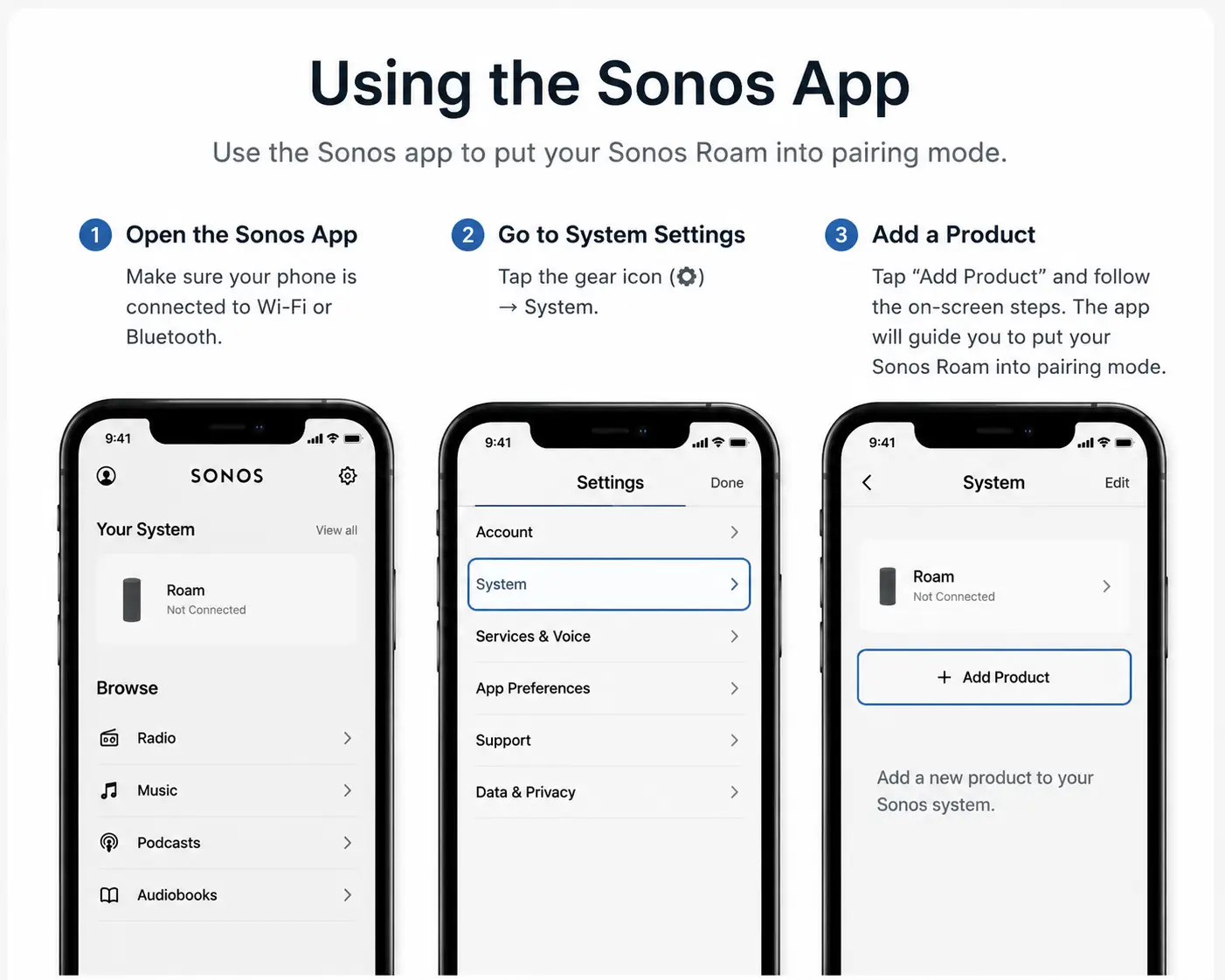
Using the Sonos App
While Bluetooth pairing works without the Sonos app, having the app installed simplifies the process and adds more functionality. Once paired via Bluetooth, the app can help you:
- Manage software updates
- Switch between Wi-Fi and Bluetooth mode seamlessly
- Rename your speaker for easier identification
- Adjust EQ settings
For many users, the app is where the Roam reaches its full potential.
Common Mistakes Users Make
Even though pairing is simple, there are a few pitfalls:
- Not holding the power button long enough
A quick press turns the device on or off, but holding it triggers Bluetooth mode. Timing matters. - Assuming Wi-Fi connection equals Bluetooth availability
The Roam can’t automatically pair with a new Bluetooth device while actively connected to Wi-Fi. You must manually switch to Bluetooth. - Pairing with multiple devices at once
Bluetooth pairing only allows one device at a time. If you try connecting a second device without disconnecting the first, it won’t work. - Ignoring firmware updates
If your Roam hasn’t updated in a while, it may act unpredictably in pairing mode. The Sonos app usually prompts you to update when needed.
Tips for a Smooth Experience
- Keep your Roam charged: Low battery can interfere with pairing.
- Restart devices if needed: Sometimes the simplest fix is turning the speaker or phone off and on.
- Label your devices: If you have multiple Sonos products, naming them in the app avoids confusion during pairing.
- Use Bluetooth when mobile: When walking around outside or away from your network, Bluetooth is often faster and more reliable than Wi-Fi.
Final Words
Putting the Sonos Roam into pairing mode is easy once you know the steps. Hold the power button to trigger Bluetooth, find the speaker on your device, and connect. Understanding how Wi-Fi and Bluetooth interact will save you frustration, and the Sonos app enhances the experience.
For users moving from other speakers or new to Sonos entirely, these tips make pairing predictable and smooth. With the Roam paired, you’re ready to enjoy music, podcasts, and more anywhere, anytime.