If you’ve been exploring ways to get the best picture quality out of your TV, you’ve probably come across Dolby Vision. But figuring out if your TV actually supports it can be confusing. Not every TV that looks great automatically has Dolby Vision, and the labels on packaging or menus aren’t always clear. We’ll walk through how you can check your TV and why it matters for your viewing experience.
What Dolby Vision Actually Is
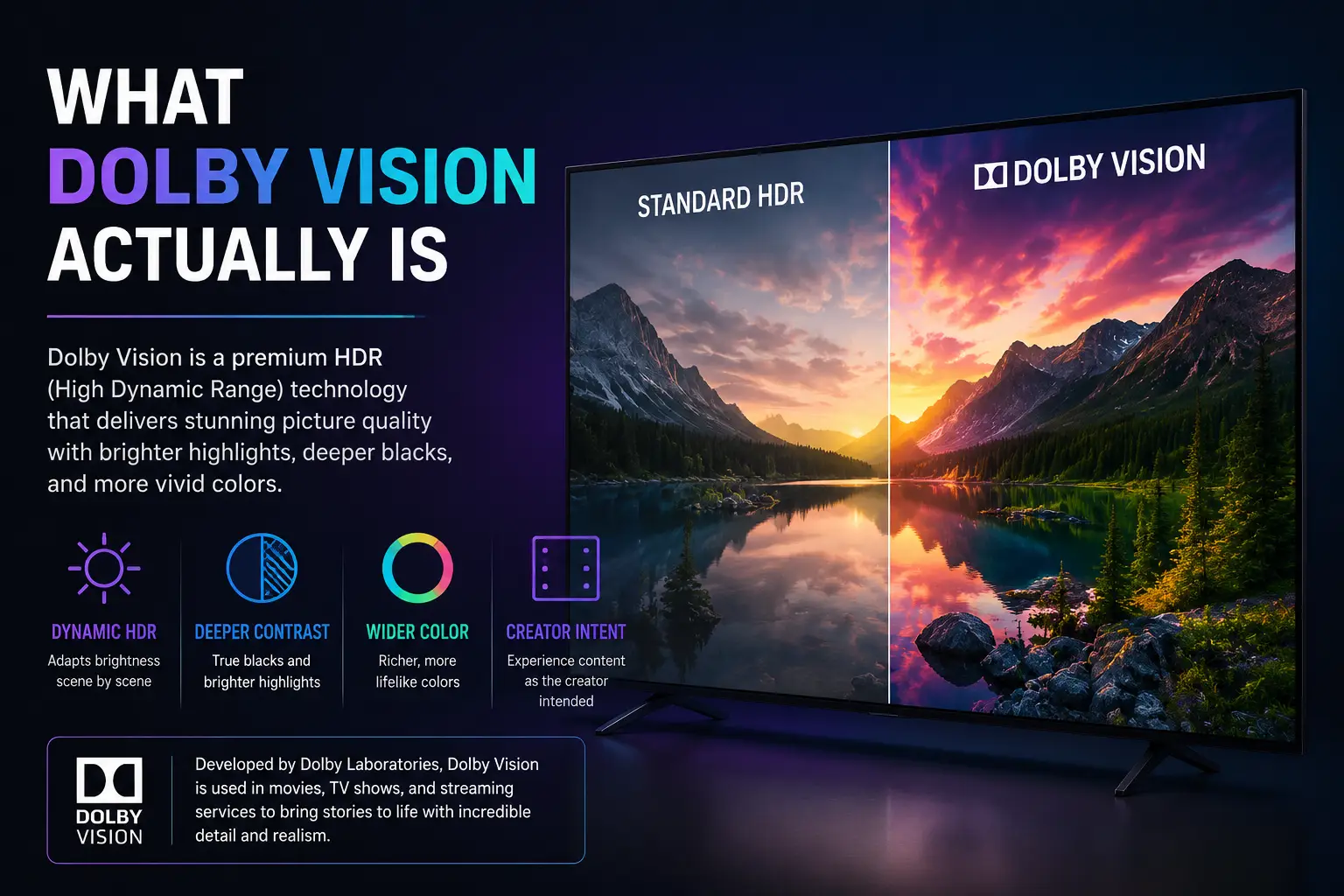
Dolby Vision is a type of HDR, or High Dynamic Range. HDR is what makes your TV’s colors more vibrant and its dark scenes more detailed. Most HDR formats, like HDR10, set a fixed standard for brightness and color. Dolby Vision goes a step further. It uses dynamic metadata, which means it adjusts brightness and color scene by scene, or even frame by frame. This gives you a more accurate picture that can show subtle details in shadows and highlights that other HDR formats might miss.
Knowing if your TV has Dolby Vision isn’t just about bragging rights. If your TV supports it and your content is mastered for Dolby Vision, you’ll see deeper blacks, brighter highlights, and richer colors, making movies and shows look closer to what the creators intended.
Check the Manufacturer’s Specs
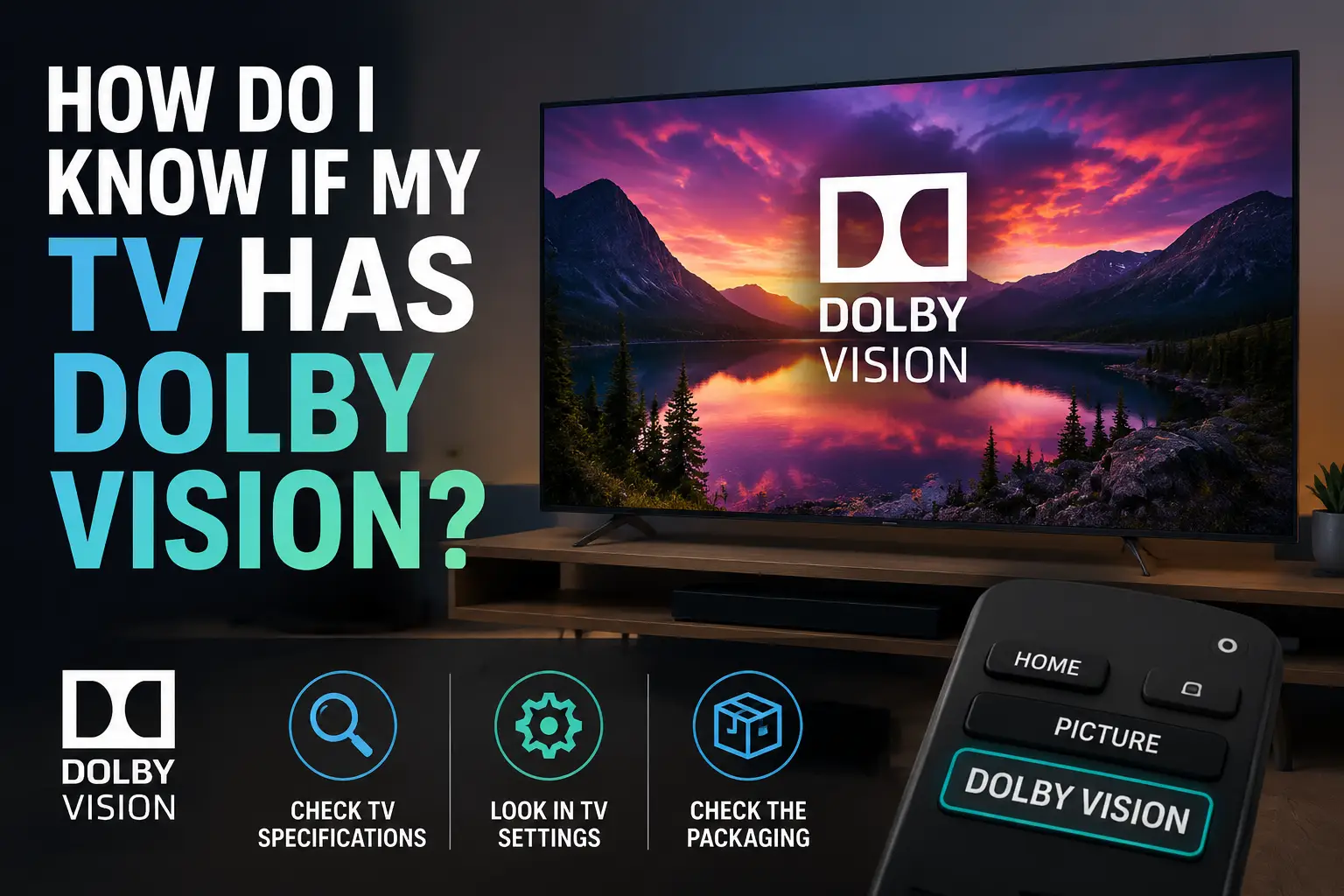
The simplest way to see if your TV has Dolby Vision is to check the official specs from the manufacturer. Most brands list Dolby Vision under “HDR formats” or “picture technologies.”
For example, if you have a LG OLED TV, look for Dolby Vision listed alongside HDR10 or HLG. If you have a Samsung QLED TV, keep in mind that many Samsung TVs do not support Dolby Vision. Instead, they rely on HDR10+ which is similar but not identical.
If you don’t have the manual handy, visit the official website of your TV’s brand. Search your model number, then check the product details section. This is usually the most reliable way to confirm whether Dolby Vision is supported.
Look in the TV Settings
Many TVs that support Dolby Vision will have a menu setting for HDR or picture modes. Go through your TV’s picture settings, usually under “Advanced Picture” or “Picture Mode,” and look for options labeled “Dolby Vision” or “Auto HDR.” Some TVs automatically switch to Dolby Vision when they detect compatible content.
Be aware that just because the setting exists doesn’t mean it’s active all the time. Your TV might only switch to Dolby Vision when it detects a Dolby Vision signal from a streaming app or an external device like a Blu-ray player.
Test With Content You Know Has Dolby Vision
Even if your TV supports Dolby Vision, it won’t make a difference unless the content itself is mastered in Dolby Vision. Streaming services like Netflix, Disney+, and Apple TV+ label shows and movies with HDR formats. Look for “Dolby Vision” in the description before playing.
Play a Dolby Vision movie or episode, then go into your TV’s information or status menu while it’s playing. Many TVs display the current HDR format being used. If it says Dolby Vision, your TV is processing the content correctly.
Check External Devices
Sometimes the confusion comes from the device sending the signal. Your streaming stick, game console, or Blu-ray player must also support Dolby Vision. For example, an Xbox Series X, PlayStation 5, or an Apple TV 4K can pass Dolby Vision if both the content and TV support it.
If your TV is compatible but the device isn’t, you won’t get Dolby Vision. Make sure your HDMI cables are also up to the task—HDMI 2.0 or higher is usually required. Some older or cheaper cables may fail to transmit the full Dolby Vision signal.
Understanding Labels and Marketing
It’s worth noting that marketing can be misleading. Some TVs claim “HDR” without specifying which type. HDR10 is standard, but it’s not the same as Dolby Vision. Make sure the label specifically mentions Dolby Vision.
Also, some mid-range TVs might support Dolby Vision only through certain ports or apps. For instance, a TV might handle Dolby Vision over a streaming app but not through a game console. Double-check the manufacturer’s documentation if you plan to use multiple sources.
Why Knowing Matters
Many users only realize the difference when they compare content side by side. Dolby Vision gives a richer, more nuanced picture. If your TV supports it but your content doesn’t, you might think it’s not making a difference. Conversely, if you think your TV has Dolby Vision but it doesn’t, you might get frustrated when dark scenes look flat or colors look muted.
Knowing exactly what your TV can do helps you choose the right content, the right apps, and even the right cables. It can also guide future purchases if you’re thinking about upgrades.
Bottom Line
To know if your TV has Dolby Vision, start by checking the official specs and your TV settings. Play content that’s mastered in Dolby Vision and confirm it through your TV’s information menu. Make sure your external devices and cables are compatible. Pay attention to marketing labels—they don’t always tell the whole story.
Dolby Vision isn’t just a feature you check once and forget. It changes the viewing experience, especially for movies and high-quality streaming shows. Once you confirm your TV supports it, you’ll be able to enjoy richer colors, deeper blacks, and more detail, scene by scene.
By following these steps, you’ll no longer have to wonder whether your TV is Dolby Vision ready. You’ll know it for sure, and you’ll get the best picture possible from the gear you already own.