If you’ve been trying to enable Dolby Atmos on your PS5 and keep running into conflicting advice, Linear PCM vs Bitstream vs Atmos, you’re not alone.
Here’s the truth: Since the September 2023 update, PS5 now supports Dolby Atmos for gaming AND media.
That means you no longer have to switch settings depending on what you’re doing. But the setup still trips people up because of HDMI limitations, TV passthrough issues, and incorrect audio formats.
This guide fixes all of it, clean, updated, and frustration-free.
What Changed: The Big PS5 Dolby Atmos Update
Before 2023:
- PS5 used Tempest 3D Audio for games
- Dolby Atmos worked only for Blu-ray and some apps.
Now:
- Tempest 3D Audio is encoded into Dolby Atmos.
- Games can output real Atmos (including height channels)
So you can now use Dolby Atmos as your primary audio format for everything.
What You Need For True Dolby Atmos
To avoid fake or downgraded audio, your entire setup must support Atmos.
Required Equipment
- Dolby Atmos soundbar OR AV receiver
- TV with HDMI eARC (not just ARC)
- High-speed HDMI cable (use the PS5’s HDMI 2.1 cable)
Why HDMI 2.1 Matters
- Supports 4K at 120Hz + high-bitrate audio
- Prevents compression and audio delay
- Ensures full Atmos signal passthrough
Using older HDMI or standard ARC = compressed or broken Atmos
Correct Connection Setup (Most Important Step)
Best Setup (Recommended)
PS5 → AV Receiver → TV
Soundbar Setup
PS5 → TV → Soundbar (via eARC)
You must Avoid This
PS5 → TV (no eARC) → Sound system
This is the #1 reason people don’t get real Atmos.
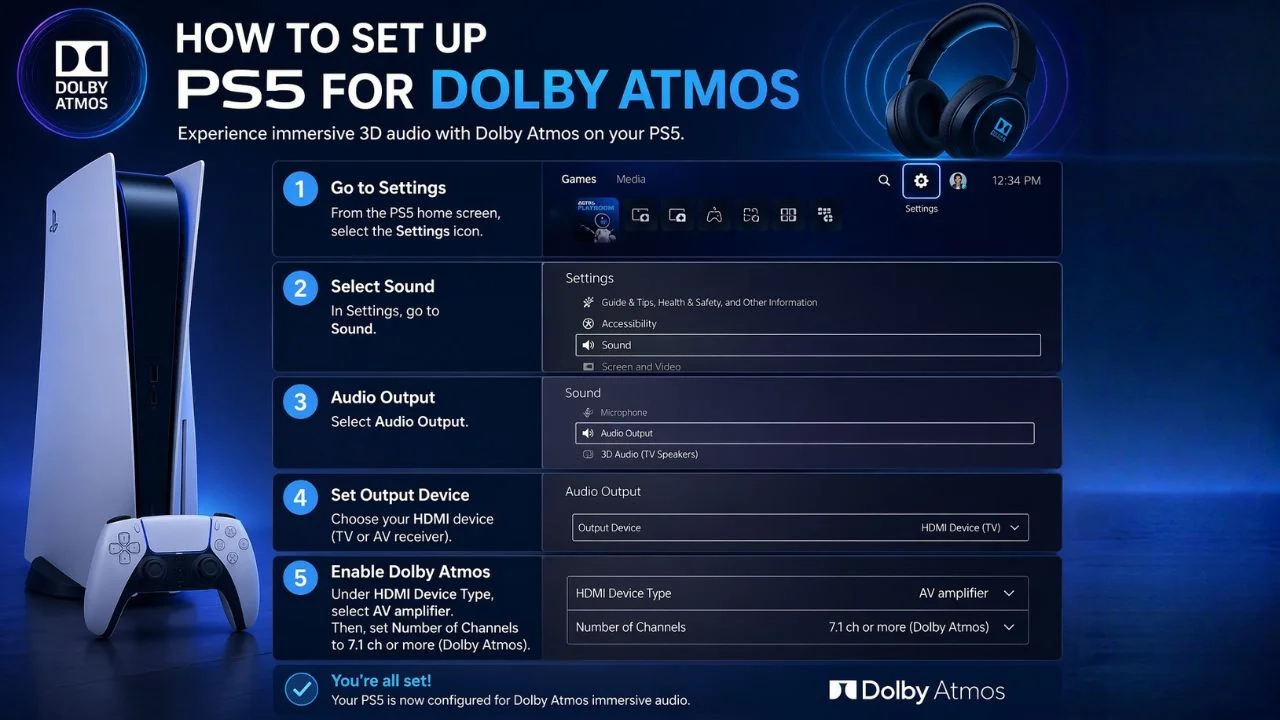
Step-by-Step: Enable Dolby Atmos On PS5
1. Go to Audio Settings
Settings → Sound → Audio Output
2. Set Output Device
- Output Device: HDMI Device (AV Amplifier)
- HDMI Device Type: AV Amplifier
- Channels: 5.1 or 7.1 (match your system)
3. Select the Correct Audio Format (CRITICAL)
This is where most guides are outdated.
Audio Format (Priority) → Dolby Atmos
Why This Matters
- “Linear PCM” = uncompressed audio, but no Atmos height data
- “Dolby Audio / Bitstream” = older compressed surround
- Dolby Atmos = full 3D spatial audio (correct choice)
Dolby Atmos for Gaming (Now Fully Supported)
Thanks to the update:
- PS5 converts Tempest 3D Audio → Dolby Atmos
- Works in supported games automatically
- No extra settings required
What You Get:
- Vertical sound positioning (above/below)
- Better directional awareness
- More immersive environments
If Atmos is enabled system-wide, you’re already using it in games.
Blu-ray & Movie Setup (Still Important)
For discs:
- Open the Blu-ray player
- Press Options
- Go to Settings
- Set Audio Format → Bitstream
This allows:
- Dolby TrueHD
- Dolby Atmos (lossless)
Streaming Apps (Netflix, Disney+)
Here’s a common issue: even if PS5 is set to Atmos, apps must support it individually.
Reality Check:
- Netflix (PS5 app): Atmos supported (on some titles)
- Disney+: Supported
- Others: inconsistent
Pro Tip:
Sometimes your TV’s built-in apps deliver better Atmos reliability than PS5 apps.
How to Confirm Dolby Atmos Is Working
For checking Dolby Atmos, it’s not a guessing game; you should confirm this by following the steps:-
Check Your Sound System
Look for:
- “Dolby Atmos”
- “Dolby TrueHD + Atmos”
If you see:-
- PCM → wrong setting
- Dolby Digital → compressed audio
Common Dolby Atmos Problems (Solved)
No Atmos Option on PS5
You can fix:-
- Update system software.
- Recheck the HDMI connection.
- Ensure receiver supports Atmos.
Only PCM Showing
You can fix:-
- Change Audio Format → Dolby Atmos
- Set HDMI Device Type → AV Amplifier
Audio Delay / Lip Sync Issues
- Use eARC instead of ARC
- Enable Game Mode on TV
- Avoid routing through non-compatible devices.
Atmos Not Working in Streaming Apps
- Check if the content supports Atmos.
- Try TV-native apps instead.
- Ensure subscription tier supports Atmos (e.g., Netflix Premium)
Best PS5 Audio Settings (Updated 2026)
For Everything (Gaming + Movies)
- Audio Format: Dolby Atmos
- HDMI Device Type: AV Amplifier
- Channels: Match your setup
No more switching between PCM and Bitstream
Pro Tips for Maximum Sound Quality
- Always use HDMI 2.1 cable (included with PS5)
- Use eARC, not ARC
- Keep firmware updated:
-
- PS5
- TV
- Sound system
- Run speaker calibration (if using AV receiver)
Final Verdict: Is Dolby Atmos Worth It on PS5 Now?
Absolutely, more than ever. Previously, Dolby Atmos on PS5 was limited to movies, but now it works seamlessly across gaming, streaming, and Blu-ray content. With the right setup, the PS5 can deliver true 3D spatial audio, immersive height channel effects, and a full home theater–level sound experience.