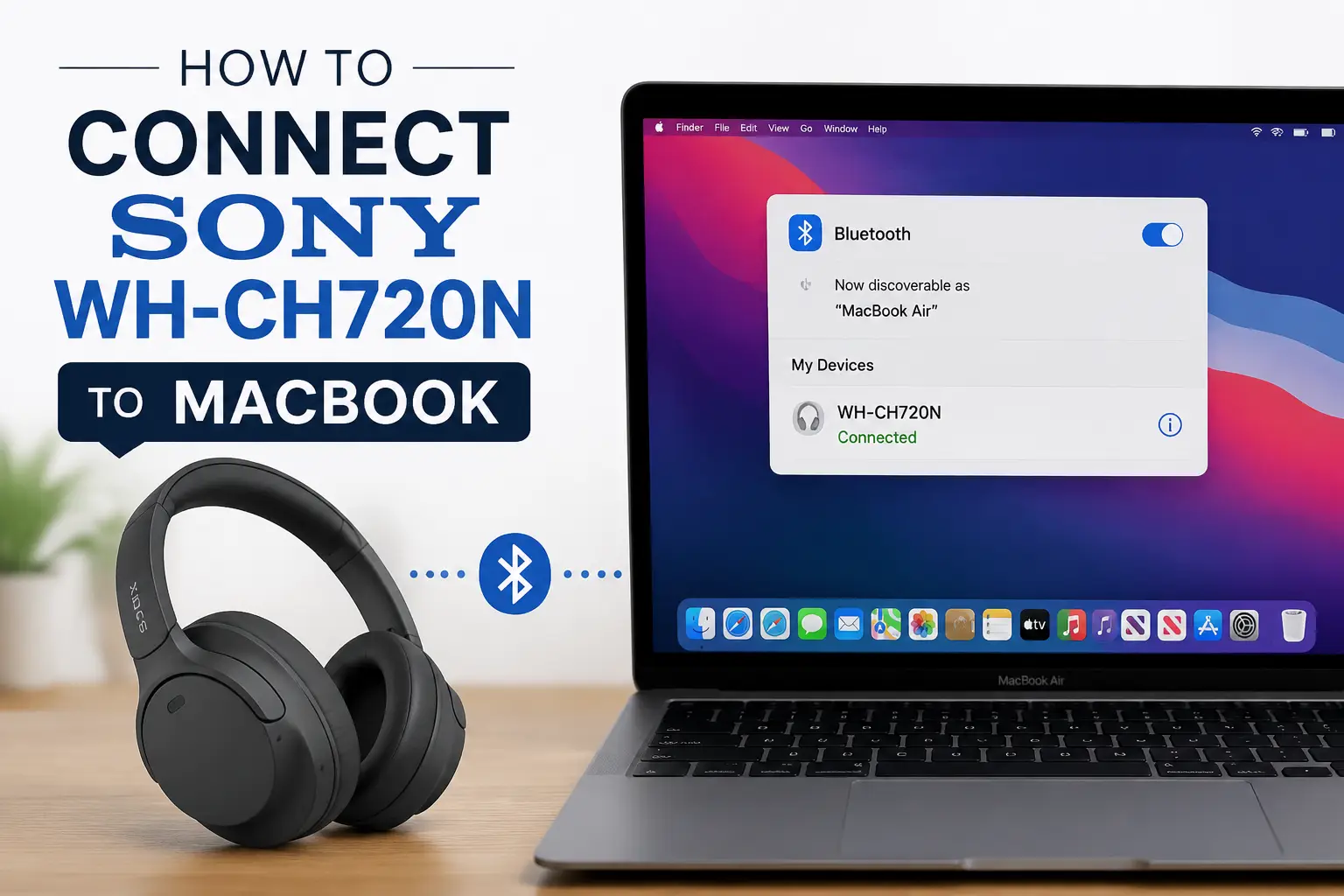
Connecting headphones to a computer might seem simple, but sometimes even modern devices need a bit of guidance. If you own the Sony WH-CH720N and a MacBook, you may find yourself wondering how to get them working together seamlessly. This post will guide you step by step, explain the user experience, and highlight what to expect when pairing these devices.
Understanding the Sony WH-CH720N
The Sony WH-CH720N is a wireless over-ear headphone that balances comfort, sound quality, and active noise cancellation. It’s designed for everyday listening, commuting, or focused work sessions. Users often choose these headphones for their lightweight design and long battery life, which can reach up to 35 hours on a single charge.
Before connecting to a MacBook, it’s helpful to know that these headphones rely primarily on Bluetooth connectivity. They also have a 3.5mm audio jack for wired use, but MacBooks without headphone jacks will require Bluetooth or a USB-C adapter for wired connections.
Why Pairing With a MacBook Can Be Tricky
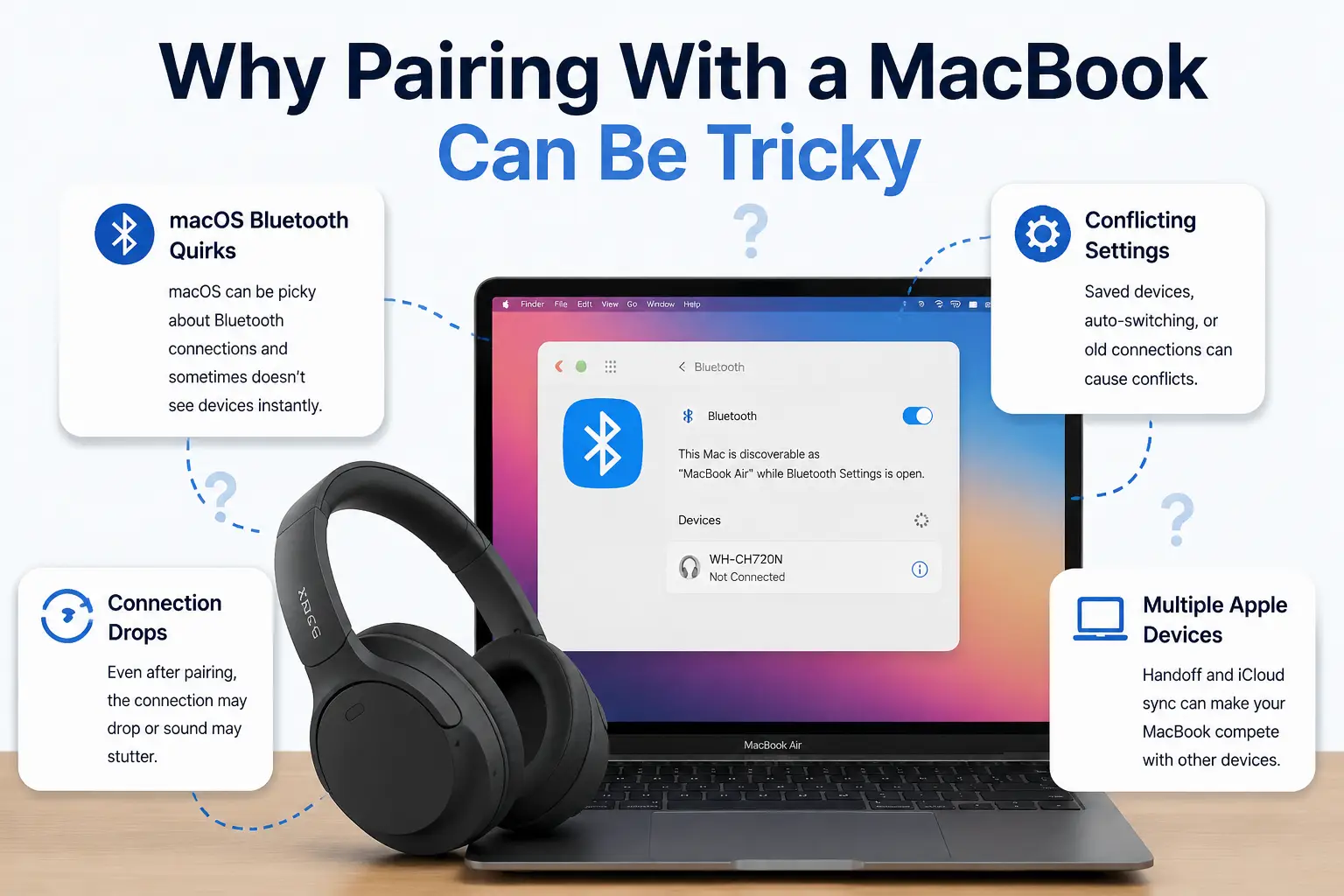
Many users report that pairing third-party Bluetooth headphones with a MacBook isn’t always as intuitive as pairing with a smartphone. MacOS has improved Bluetooth management over the years, but the steps aren’t always obvious for first-time users. Users often want a guide that explains both the technical steps and what they should expect during the process.
This is where understanding the user journey is important. A typical user comes with several goals:
- They want the headphones to pair quickly without errors.
- They want MacOS to recognize the headphones as both audio output and microphone input (for calls or recording).
- They want a stable connection without frequent dropouts.
Knowing these priorities helps frame the steps that follow.
Step 1: Preparing the Headphones
Start by turning on your Sony WH-CH720N. Press and hold the power button for a few seconds until the indicator light begins blinking blue, signaling that the headphones are in pairing mode.
If the light flashes red and blue, it usually means the headphones are already paired with another device. In that case, you may need to disconnect or reset the headphones. Press and hold the power button for about 7 seconds until you hear a voice prompt or see the blue light blinking rapidly. This ensures the device is ready to pair with your MacBook.
Step 2: Opening Bluetooth Settings on Your MacBook
On your MacBook, click the Apple menu in the top-left corner, then choose System Settings. From there, navigate to Bluetooth. Make sure Bluetooth is turned on. The MacBook will begin scanning for nearby devices automatically.
At this stage, patience is key. Some users report that it may take a few seconds for the WH-CH720N to appear in the list of available devices. If it doesn’t show up immediately, check that the headphones are still in pairing mode.
Step 3: Pairing the Devices
Once the Sony WH-CH720N appears in the list of Bluetooth devices, click Connect. You may hear a confirmation sound in the headphones or see a notification on the MacBook that the device is connected.
At this point, your MacBook should recognize the WH-CH720N as an audio output device. To verify, go to System Settings > Sound > Output, and make sure the headphones are selected. This ensures all audio, from music to system sounds, will route through the headphones.
Step 4: Configuring for Microphone Use
If you plan to use the headphones for calls, meetings, or recording, you’ll also need to check the input settings. In System Settings > Sound > Input, select the WH-CH720N if you want MacOS to use its built-in microphone.
Some users notice that the microphone quality is lower than expected, which is typical for Bluetooth headsets. For better clarity, especially in professional calls or recordings, consider using a dedicated external microphone alongside the headphones.
Step 5: Troubleshooting Common Issues
Even with careful steps, users sometimes face connectivity issues. Here are a few common problems and solutions:
- Headphones not appearing in Bluetooth list: Make sure they are in pairing mode. Resetting the headphones often resolves this.
- Connection drops frequently: Check for interference from other Bluetooth devices or crowded Wi-Fi channels. Keeping the MacBook and headphones close together usually helps.
- Audio only plays in one ear: Forget the device in MacOS and pair again.
- MacBook not recognizing microphone: Disconnect other audio devices, then reconnect the WH-CH720N.
These minor issues are common with any wireless headphone, not just the WH-CH720N, but most are easily solved with simple troubleshooting.
Step 6: Optimizing the Experience
Once connected, take some time to explore the Sony Headphones Connect app if you own an iPhone or iPad. While MacBooks don’t support all app features, the app allows you to adjust noise cancellation, EQ settings, and ambient sound control. Even if you only adjust these settings on a mobile device, it can improve your listening experience when paired with the MacBook.
Also, keep your headphones charged. Low battery can lead to unstable Bluetooth connections or reduced audio quality. The WH-CH720N has quick charging, giving about 60 minutes of playtime from a 10-minute charge, which is convenient for users on the go.
Final Thoughts
Connecting the Sony WH-CH720N to a MacBook is straightforward once you know the steps, but understanding the user experience is just as important as following the technical instructions. Users want reliable connectivity, high-quality sound, and microphone functionality. Paying attention to the pairing process, checking settings, and troubleshooting minor issues ensures a smooth experience.
These headphones offer comfort, battery life, and decent noise cancellation, making them a solid choice for MacBook users who value both work and leisure listening. By following this guide, users can get up and running quickly, with minimal frustration and maximum audio enjoyment.